187
187
To add Business Income, follow the steps below:
If the policy is already active, then select the Endorse button before making a change.
1 - Navigate to the Building Coverages section and select the location/building on the right-hand side

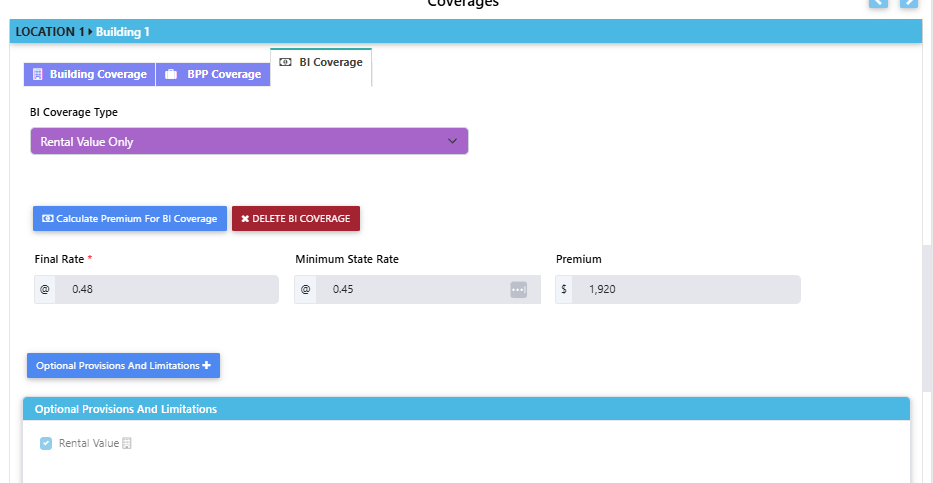
2 - Scroll to the bottom of the Building Coverage section and select the 'BI Coverage' tab

3 - Select the Coverage Type from the 'BI Coverage Type' dropdown
4 - If Business Income with extra expenses or Business Income without extra expenses is selected, then enter the limit amount into the 'Limit of Insurance' field and select the limit option from the 'Coinsurance & Indemnity Options' dropdown. Followed by the 'Calculate Premium For BI Coverage' button

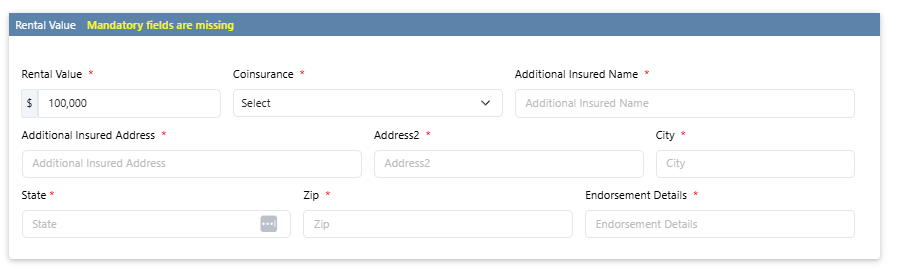
If Rental Value Only is selected, then select the 'Calculate Premium for BI Coverage' button and select the 'Optional Provisions and Limitations' to enter Rental Values details.