


Property: Change Replacement Cost and/or Actual Cash Value

May 27, 2026
 193
193
To change the Building Coverage - Year or Valuation follow the steps below:
- Retrieve the Quote or Policy
- Locate and open the Quote/Policy in the system.
- If Policy is already active then begin Endorsement to process change
- Access Property tab
- Navigate to Coverages section, click the “Building Coverage” button if needed

- Navigate to Coverages section, click the “Building Coverage” button if needed
- Select the Building
- On the left-hand side, select the building number.
- Scroll to the “Building Coverage” section (first tab at the bottom).

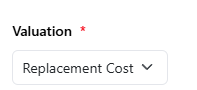
4. Update Valuation
- In the Valuation dropdown, choose "Replacement Cost" or “Actual Cash Value (ACV)”.
5. Update Building Update Years as needed

6. Recalculate Premium
- Click the “Calculate Premium for Building Coverage” button.
7. Generate the Updated Quote/Premium
- If account is in Quote status - Scroll to the bottom and click the “Generate Quote” link to finalize the updates.
- If accoun is in Bind status - Scoll to the bottom and click the "Generate Quote" link, then Regenerate the Binder details by selecting the "Convert to Binder" and "View Binder" links
- If policy is already issued - then scroll to Endorsement module and select Calculate Premium, followed by the Preview Endorsement button and Complete/Issue Endorsement to finalize the change

