You are using an unsupported browser. Please update your browser to the latest version on or before July 31, 2020.
close
You are viewing the article in preview mode. It is not live at the moment.
Remove Property Location
print icon

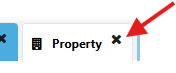
To remove Property entirely:


1 - Select the x next to the Property tab


To remove a specific property location, you may follow the steps below:


1 - Select Property tab


2 - Expand the ‘Location Building Details’ section by clicking on it


3 - Once the Location Building Details open, select on the red ‘x’ for the location you want to remove.


4 - Scroll to the Policy Services section and select the Calculate Premium Button


5 - Review the generated premium and endorsement wording for accuracy


6 - Click on the Preview Endorsement button to review the change


7 - Select the Complete/Issue Endorsement button to finalize it

Feedback
0 out of 0 found this helpful

scroll to top icon